Supporting Enhanced Search Options for Drupal Sites
Apache Solr with Drupal

 Check Your YAML Before It Checks You
  The Long Road Ahead
  Python Support Has Arrived
If you are using Apache Solr with your Drupal application, there are a few ways to configure your Probo.CI build to leverage it. You will need to tell Probo.CI which version of Solr and provide the Solr core you will be using from Search API Solr. For more information on this step, see the Solr Configuration page.
In terms of Solr cores for Drupal, here are some quick links to applicable cores for Solr 7, 8, and 9:
With that completed, here are a few options:
settingsAppend option.settingsAppend OptionCopy the settingsAppend section below into the Drupal Plugin configuration on your .probo.yaml file. You should specify the machine name in the $config section of your appended settings. The example below would work for a Search API Server with the machine name solr. If your core has the machine name of solr_core then the $config key would change from search_api.server.solr to search_api.server.solr_core.
Also keep in mind that the name of your core should match the name you specified in your solr configuration. If you specifed a name of core then your full configuration would look something like the below as an example. You will need to tweak this to your specific settings.
1 2 3 4 5 6 7 8 9 10 11 12 13 14 15 16 17 18 19 20 | steps: - name: Install and Update Drupal plugin: Drupal database: drupal-database.sql.gz composer: true databaseGzipped: true databaseUpdates: true clearCaches: true drupalVersion: 11 settingsAppend: | $config['search_api.server.solr']['backend_config']['connector'] = 'standard'; $config['search_api.server.solr']['backend_config']['connector_config']['scheme'] = 'http'; $config['search_api.server.solr']['backend_config']['connector_config']['host'] = 'localhost'; $config['search_api.server.solr']['backend_config']['connector_config']['core'] = 'drupal'; $config['search_api.server.solr']['backend_config']['connector_config']['path'] = '/'; $config['search_api.server.solr']['backend_config']['connector_config']['timeout'] = '5'; $config['search_api.server.solr']['backend_config']['connector_config']['index_timeout'] = '5'; $config['search_api.server.solr']['backend_config']['connector_config']['optimize_timeout'] = '10'; $config['search_api.server.solr']['backend_config']['connector_config']['finalize_timeout'] = '30'; $config['search_api.server.solr']['backend_config']['connector_config']['commit_within'] = '1000'; |
If your project already manages environment-specific configuration with the Configuration Split module, you can point Drupal at Probo’s Solr instance without ever touching your production configuration. The idea is to create a dedicated split that overrides only the Search API Solr server connection so that, when the split is active inside a Probo build, Drupal talks to the Solr core running on localhost instead of your production Solr host.
This guide assumes you are running Config Split 2.x on Drupal 9, 10, or 11, that your site is already set up for configuration management (drush cex / drush cim), and that you have defined a Solr core in your .probo.yaml as described in the Solr Configuration page.
Your production Search API server configuration (for example search_api.server.solr) stores the host, scheme, and core that point to your live Solr instance. Inside a Probo build, Solr is always available at http://localhost/ with the core name you defined in your solr: block. Rather than editing settings at runtime, we keep an alternate copy of just the server connection inside a partial split and activate that split during the build.
Using a partial split (as opposed to a complete split) is important: it keeps the original search_api.server.solr configuration in your default sync directory so production is never affected, while storing the Probo-specific connection values separately and merging them on top only when the split is active.
Navigate to Configuration → Development → Configuration Split settings (/admin/config/development/configuration/config-split) and add a new split:
Proboprobo../config/splits/probo.Under the Partial Split (conditional) section, add search_api.server.solr to the Configuration items field. If your Search API server uses a different machine name, substitute it here (for example search_api.server.solr_core).
With the split defined, set the Search API server to Probo’s connection details so the correct values are written into the split. You can do this on a local or throwaway environment via the Search API UI (Configuration → Search and metadata → Search API), editing the Solr server to use the Standard connector with the following values:
| Setting | Value |
|---|---|
| Connector | standard |
| Protocol | http |
| Solr host | localhost |
| Solr core | drupal (match the name from your solr: block) |
| Solr path | / |
Export your configuration so the partial split folder is populated:
This writes a search_api.server.solr.yml file into your split folder (../config/splits/probo) containing only the Probo connection overrides. It will look similar to the following:
1 2 3 4 5 6 7 8 9 10 11 12 13 14 | # ../config/splits/probo/search_api.server.solr.yml backend_config: connector: standard connector_config: scheme: http host: localhost port: 8983 path: / core: drupal timeout: 5 index_timeout: 5 optimize_timeout: 10 finalize_timeout: 30 commit_within: 1000 |
Commit both your updated default sync directory and the new split folder to your repository so they are available inside the build.
Tell Drupal to enable the probo split during the build, then import configuration so the override is applied. In Config Split 2.x a split is activated by overriding its status in settings.php, which you can do directly from your Drupal plugin’s settingsAppend option:
1 2 3 4 5 6 7 8 9 10 11 | steps: - name: Install and Update Drupal plugin: Drupal database: drupal-database.sql.gz composer: true databaseGzipped: true databaseUpdates: true clearCaches: true drupalVersion: 11 settingsAppend: | $config['config_split.config_split.probo']['status'] = TRUE; |
With the split active, import your configuration and reindex Solr. Add the following commands after your Drupal step:
1 2 3 4 5 6 7 8 | - name: Import configuration with the Probo split active command: drush -r /var/www/html config:import -y - name: Clear Solr Index command: drush -r /var/www/html sapi-r -y - name: Index Solr command: drush -r /var/www/html sapi-i --batch-size=100 -y |
Because the probo split is now active, drush config:import layers the Probo Solr connection on top of your imported configuration, repointing the Search API server to the localhost core for the duration of the build. Your production and other environments continue to use the original search_api.server.solr values stored in your default sync directory, completely untouched.
If your build imports a production database, the Search API server configuration already exists in the database. Running drush config:import with the split active is what overwrites those stored values with Probo’s localhost connection, so be sure to include the import step above rather than relying on the database import alone.
If you choose not to use the settingsAppend solution, your Solr settings inside your Probo build need to look as follows:
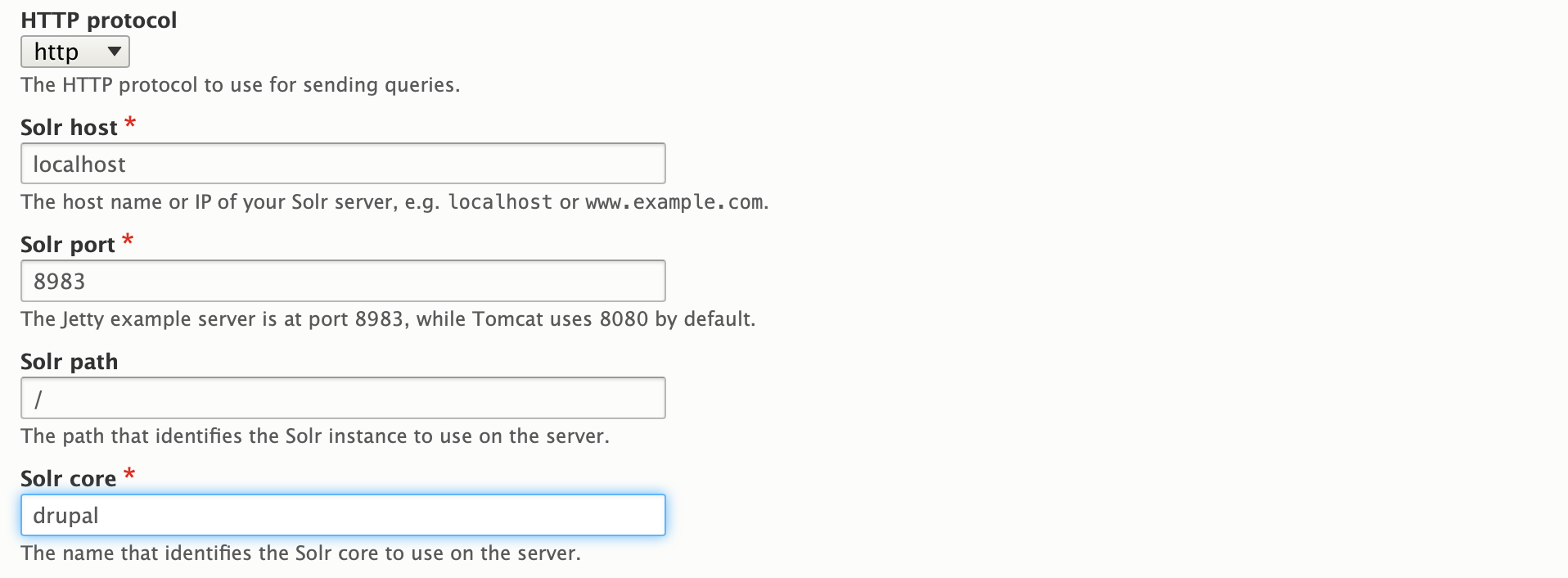
Additionally you can automatically import into Solr using Drush:
1 2 3 4 5 | - name: Clear Solr Index command: drush -r /var/www/html sapi-r -y - name: Index Solr command: drush -r /var/www/html sapi-i --batch-size=100 -y |

When you sign up for a Probo.CI registration code, you will get a two week trial of the plan of your choosing. For more information on how to get started, click here .
LEARN MORE ABOUT PROBO.CI'S PRICING