Build Specific Environment Variables
Environment Variables & Secrets

 Check Your YAML Before It Checks You
  The Long Road Ahead
  Python Support Has Arrived
There are several variables available for you to use in your build steps. You can use these to display the information within your application to indicate which version of the application it is or which pull request or commit. Probo.CI also displays some of this information on the shell for each build.
| ENVIRONMENT VARIABLE | The value of the environment variable |
$ASSET_DIR | The filepath which contains any assets you uploaded to your Probo project. |
$BRANCH_NAME | The name of the branch the build is based on. |
$BRANCH_ESCAPED_NAME | The name of the branch the build is based on with slashes replaced with dashes. |
$BRANCH_LINK | An HTML link to the branch (in GitHub, Bitbucket, etc). |
$BUILD_ID | The ID for the build. |
$BUILD_DOMAIN | The HTTPS URL of the build. |
$COMMIT_REF | The commit ID the build is based on. |
$COMMIT_LINK | An HTML link to the commit (in GitHub, Bitbucket, etc). |
$PROBO_ENVIRONMENT | Boolean acknowledging the build is in Probo. |
$PULL_REQUEST_NAME | The name of the Pull Request. |
$PULL_REQUEST_LINK | An HTML link to the pull request (in GitHub, Bitbucket, etc). |
$SRC_DIR | The filepath which contains the code from your pull request. |
In addition to these, any secrets or variables that you define in your project or organization will be included in this as well. Note that if you specify the same secret both in the project and organization, the value from the project will override the organization value.
In PHP, these are available via the getenv() function.
In Dotnet, these values are passed to any web service that you run if applicable or via any other mechanism to read system environment variables.
In addition to the built-in variables above, you can define your own values — API keys, tokens, passwords, or any configuration your build needs — from the Secrets area of the Probo portal at app.probo.ci. Each secret you add is exposed to your build as an environment variable. Because they live in the portal rather than your repository, secrets stay out of your codebase, and their values are masked in the interface (shown as dots, revealed with the eye icon) so they aren’t exposed at a glance.
Secrets can be defined at two levels. When the same key exists in both places, the project value overrides the organization value.
| SCOPE | WHERE IT APPLIES |
| Organization | Shared by every project in the Organization. Set these on the Secrets tab of the Organization page. |
| Project | Applies to a single project only, and overrides an Organization secret of the same name. Set these on the Secrets tab of the project page. |
Secrets set at the Organization level are available to every project the Organization owns.
MY_SECRET_KEY).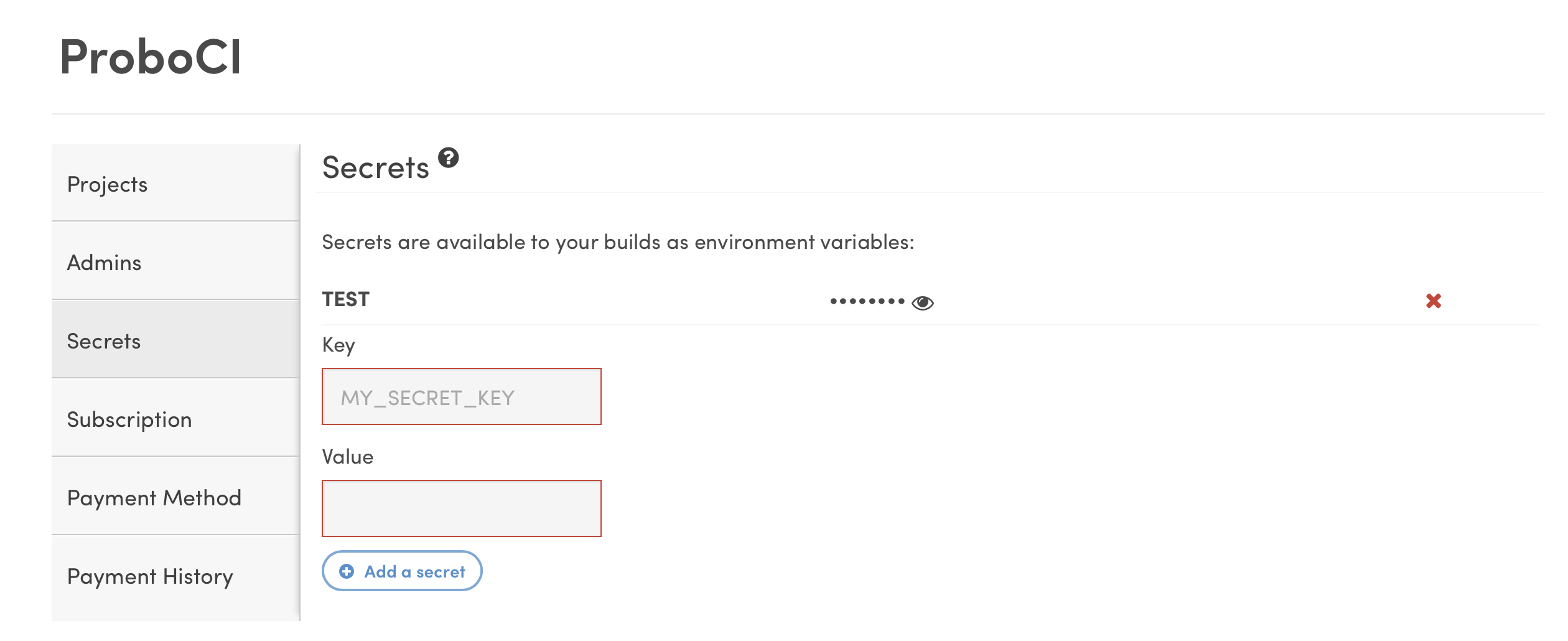
Secrets set on a project apply only to that project and take precedence over Organization secrets that share the same key.
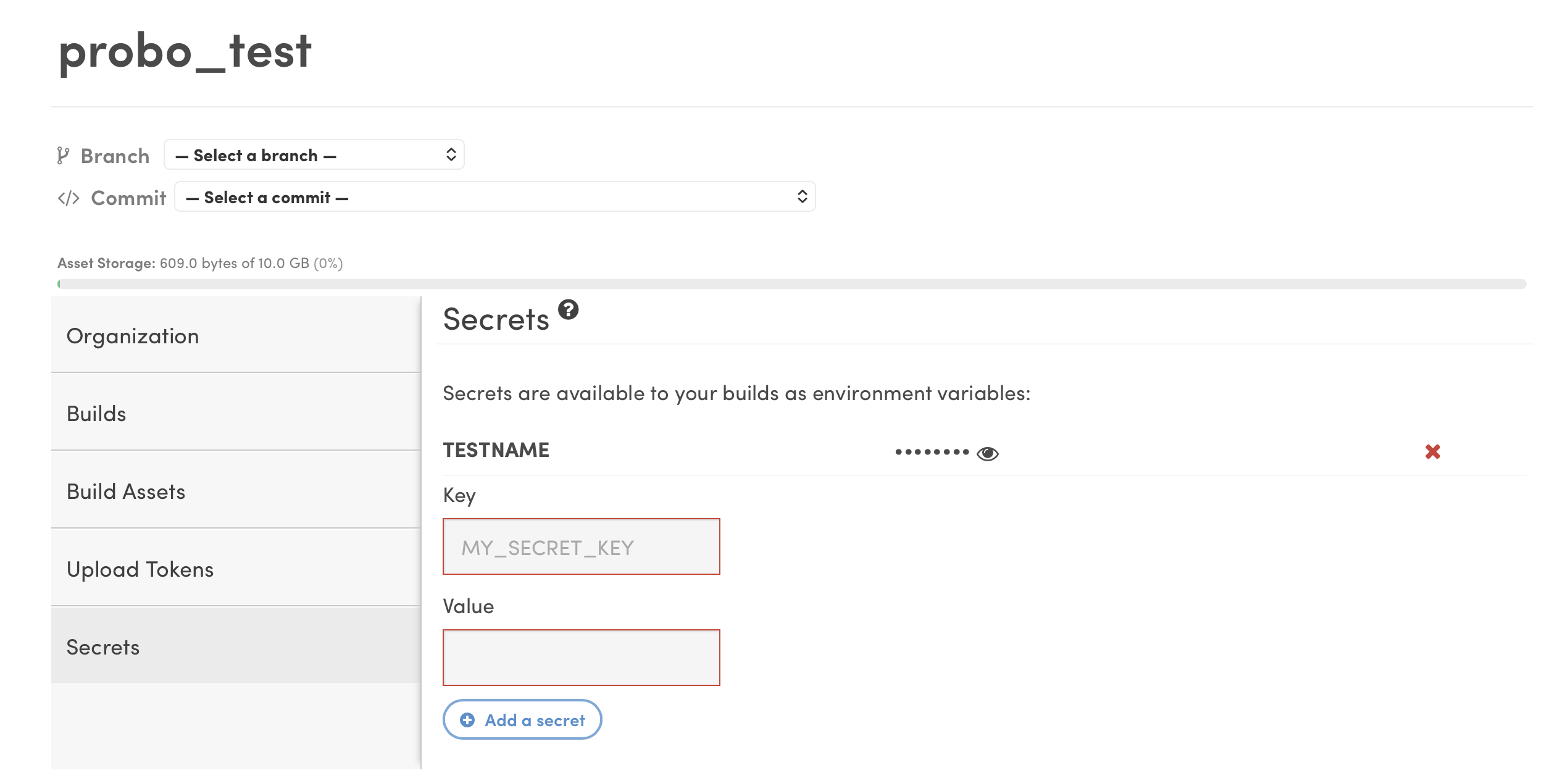
To delete a secret, click the red X to the right of its entry in the list.
Note: Changes to your secrets take effect on the next build. Re-run or re-trigger a build for updated values to be applied.
Once saved, reference your secrets in .probo.yaml build steps just like the built-in variables above — for example $MY_SECRET_KEY in a shell command, or read them from your application at runtime (getenv('MY_SECRET_KEY') in PHP). The real value is available inside the build container while remaining out of your committed code.

When you sign up for a Probo.CI registration code, you will get a two week trial of the plan of your choosing. For more information on how to get started, click here .
LEARN MORE ABOUT PROBO.CI'S PRICING